 Planner
Using Planner
Reading plans
How the sidebar, workspaces, panes and tabs work, and how Planner keeps up as agents write.
The sidebar
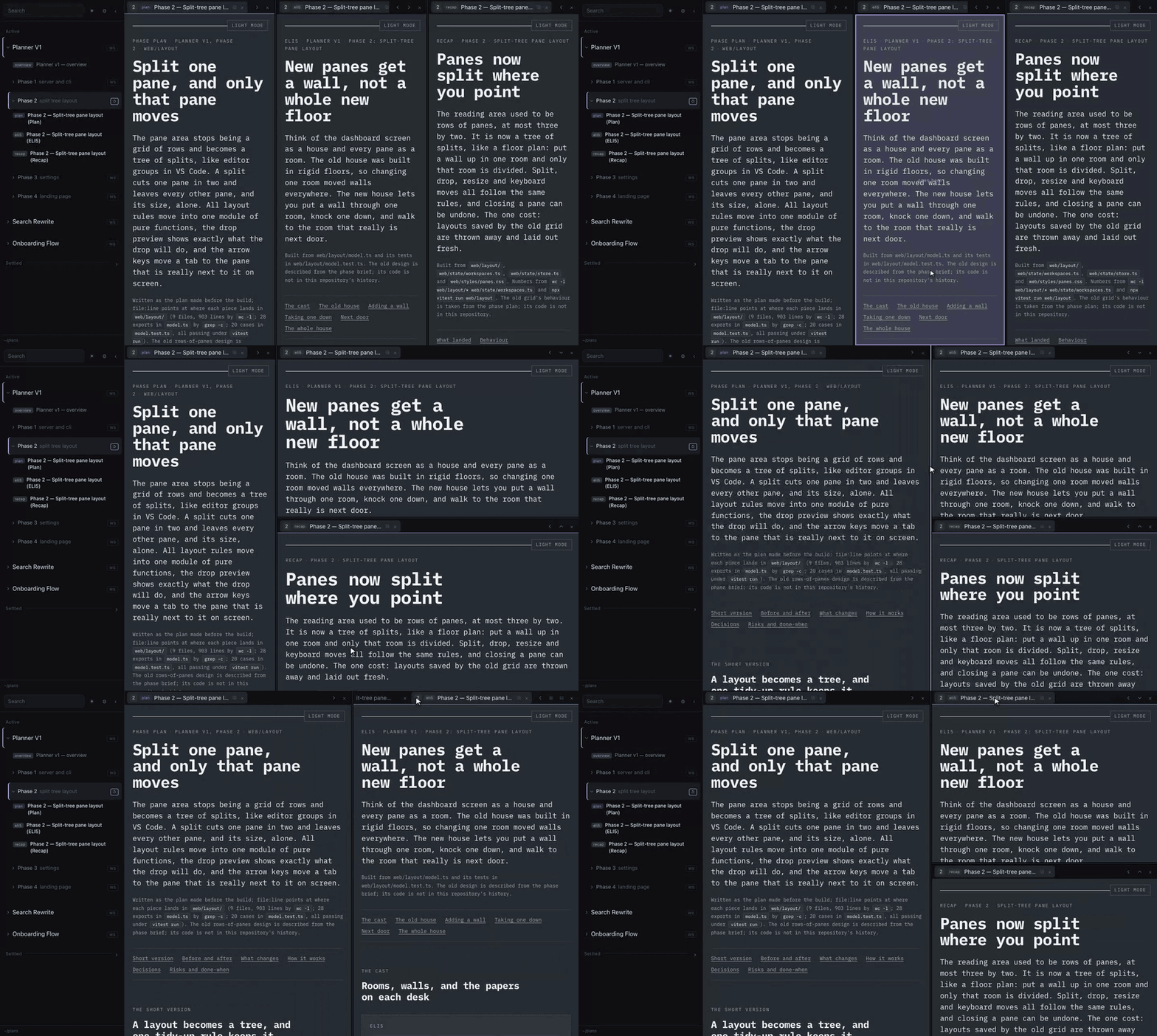
The sidebar lists your tasks, newest first; drag a task to move it. Click a task to show its phases, and a phase to show its docs. With more than one docs folder, each folder gets its own section.
- Each doc shows a badge for its type (
plan,eli5,recap,md, …), set by its file name. - Click a doc to open it in the focused pane. Shift-click it, or click
⇥, to open it in the next pane, splitting one off if needed. - Drag a doc onto a pane to open it there, or onto a pane's edge to open it in a new pane.
⧉copies the absolute path of a file or folder, ready to paste into a terminal or hand to an agent.☺on a task gives it an icon. Doc types and docs folders can have icons too; see Configuration.‹collapses the sidebar to a thin rail; drag its edge to resize it.
Workspaces
A workspace is one folder's docs opened together: a phase, a task's own top-level plans, or an extra folder like
research/. Each workspace remembers its own pane arrangement.
wsnext to a task or phase makes it your workspace. The first time, every doc gets its own pane: up to three in a row, more over two rows, six at most.- On the workspace you are in,
wsbecomes↺: it lays the workspace out again from its docs (picking up new ones), and Undo brings your arrangement back. - Opening a doc from another phase adds it to the workspace on screen; the number on its tab says which phase it came from.
Ctrl+1…9opens the first nine phases of the task you are in.
Panes and tabs
The panes form a tree like an editor's: any pane can be split right or down, and a split only divides that pane.
- Drag a tab onto a pane's edge to split it there, onto its middle to move the tab in, or along a tab strip to reorder. The highlight always shows exactly the space the tab will take.
- Drag a divider to resize the panes either side of it.
- The pane buttons move the shown tab to the neighbouring pane (chevrons), split it off right or below (
⊞⊟), or close the pane (×, with Undo). Each only shows when it can do something. - Middle-click a tab to close it.
- A pane keeps every tab you give it; its tab strip scrolls sideways when they overflow.
- Each doc keeps its scroll position when you switch tabs, move it, or change theme.
All of these have keyboard shortcuts.
Live updates
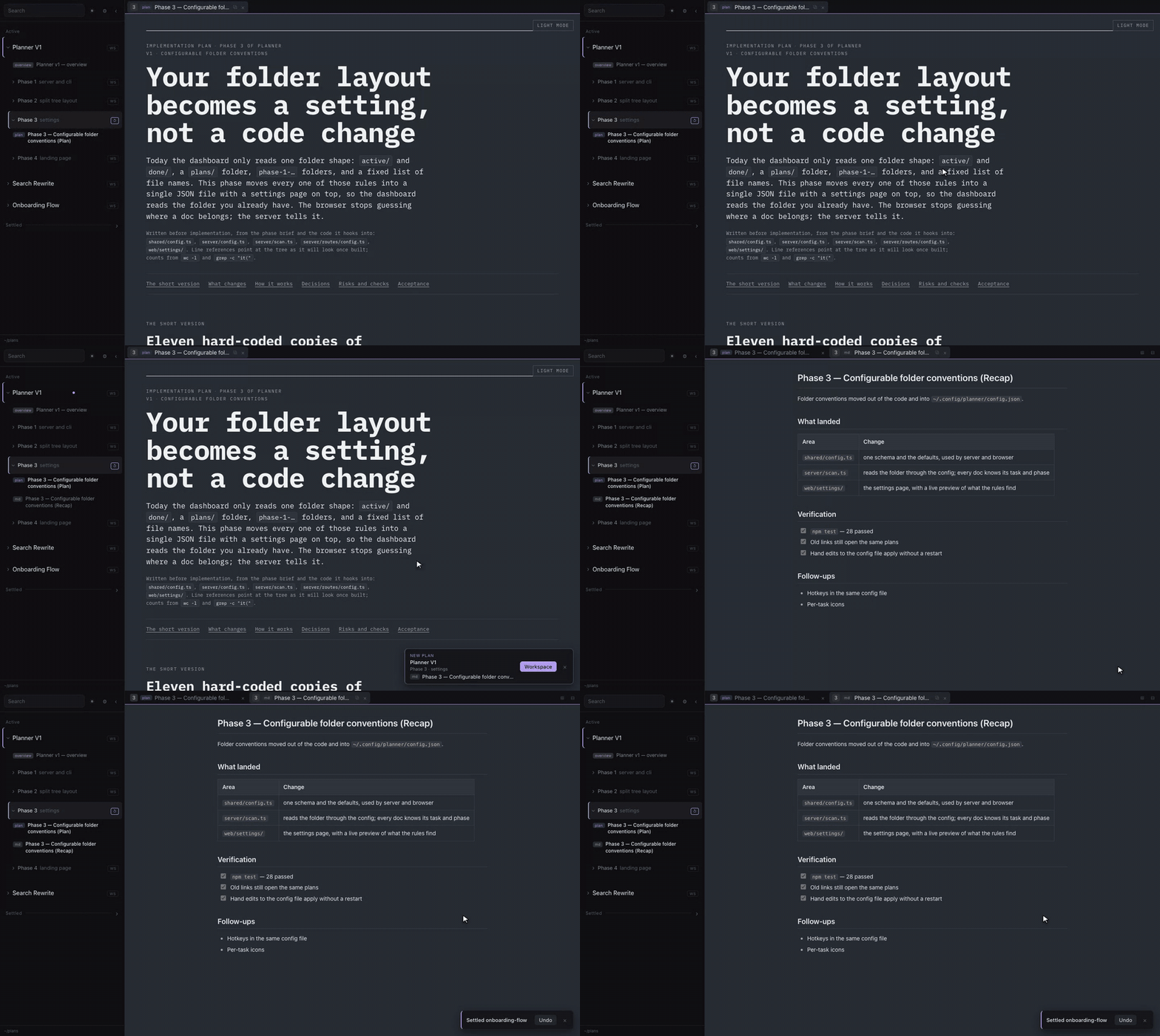
- When a new doc appears, a notification names its task and phase. Workspace opens it in its own workspace.
- If the Planner tab is in the background, its title and icon show a count until you come back.
- A doc you have open reloads in place when its file changes, keeping your place.
Search
The search box filters tasks, phases and docs by name as you type. From three letters it also searches inside every
doc: results show the matching line, and opening one shows the doc with the first match selected. Press / to jump to
the search box.
Settling tasks
When a docs folder has status folders (active/ and done/ by default), hover a task and click settle to move its
folder to done/; restore moves it back. Open tabs follow the files, and links keep working because they leave the
status folder out. Undo reverses a settle.
Light and dark
☀ / ☾ switches the theme. It starts from your system setting and remembers your choice. Markdown follows it; HTML
docs keep their own colours unless they listen for Planner's theme (see
Theme hand-off).