Planner
Your docs
Docs folders
How Planner finds tasks, phases and docs in a folder, and how to read several folders at once.
The default layout
Out of the box Planner expects each docs folder to look like this:
<docs folder>/
├── active/                       tasks in progress    ┐ "status folders": settle / restore
├── done/                         finished tasks       ┘ moves a task between them
│   └── <task>/
│       ├── plans/
│       │   ├── mother-plan.html  task-level docs: the task's own workspace
│       │   ├── phase-1-setup/    a phase: its own workspace
│       │   │   ├── plan.html
│       │   │   └── recap.md
│       │   └── phase-2-api/
│       └── research/             an extra folder with its own section
└── weekly/                       docs outside any task: a collection
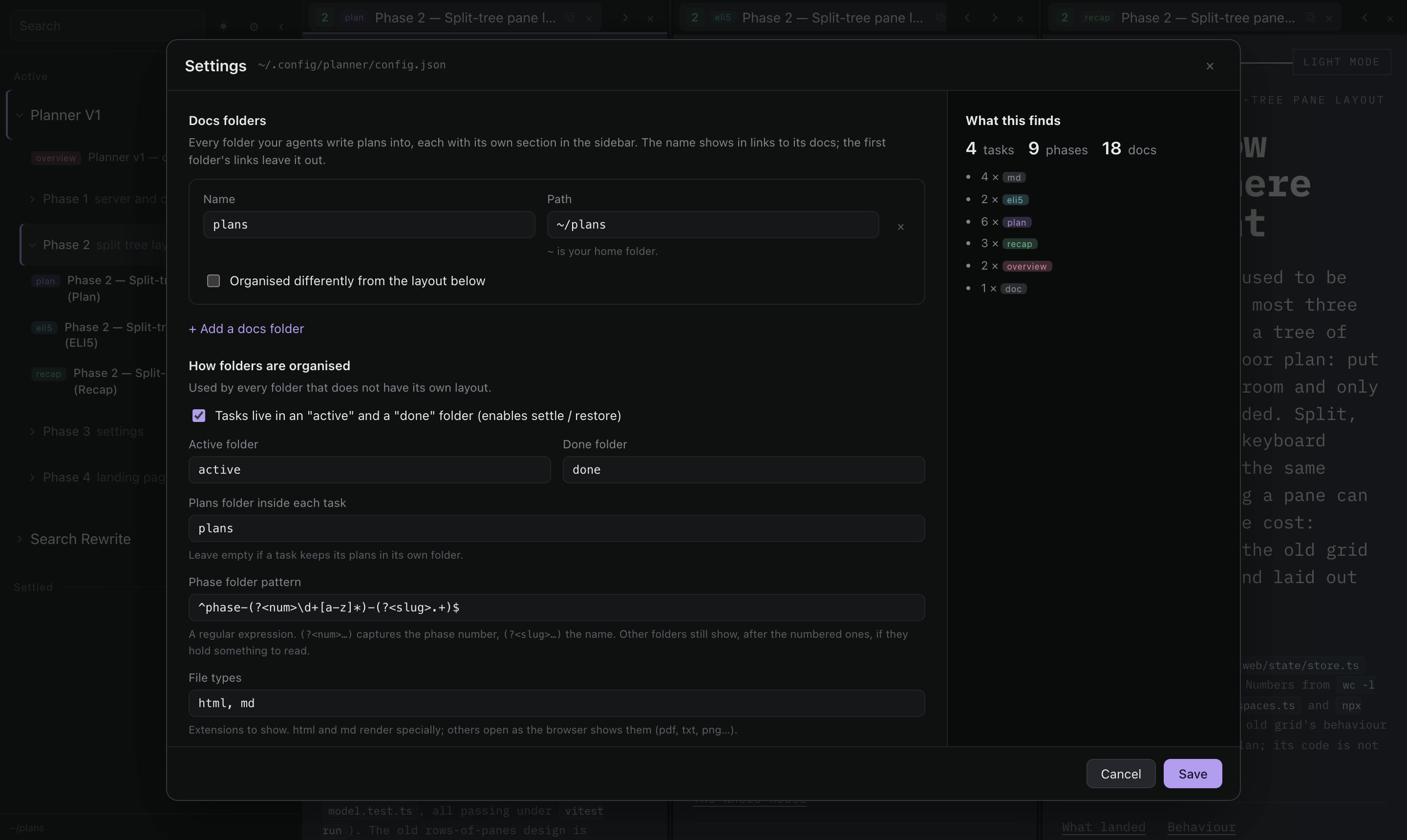
Every part of this is a setting. If your agents lay things out differently, change the layout in Settings or the config file, for every folder or for one.
Tasks, phases and docs
- Tasks are the folders inside each status folder, or directly inside the docs folder when
statusFoldersisnull. Without status folders there is no settle or restore. - A task's plans sit in its
plansFolder(plansby default), or in the task folder itself when it is"". - Phases are the sub-folders of the plans folder. A folder matching the
phasePatterngets a number and a name:phase-1a-authis phase 1a, auth, sorted after 1 and before 2. A folder not matching still shows, after the numbered ones, if it holds something to read. - Docs are the files with a listed extension (
fileTypes,htmlandmdby default). HTML shows as written; Markdown is rendered in Planner's theme; other types, such aspdf,txtor images, show as the browser shows them. Files starting with a dot are ignored. - A doc's label is its
<title>, or the first#heading of a Markdown file.
Doc types
A doc type gives a doc a coloured badge, and optionally an icon, by its file name. The first type whose pattern matches wins, and the order of the types is also the order docs are listed and laid out in. Files matching none show as doc.
| Type | Badge | Matches |
|---|---|---|
| overview | overview | mother-plan.html |
| plan | plan | plan.html |
| eli5 | eli5 | eli5*.html |
| explainer | note | explainer*.html |
| recap | recap | recap.html |
| evidence | tests | evidence.html |
| md | md | *.md |
In patterns, * matches anything and ? one character.
Groups and collections
- A group is an extra folder inside each task with its own section after the phases, like
research/. By default Planner shows the HTML pages in each task'sresearch/. - A collection lists docs outside any task by a path pattern inside the docs folder, such as
weekly/*/*.html, in its own section at the bottom of the sidebar. Collections can notify you of new docs or stay quiet.
Several docs folders
Planner can read any number of docs folders, for example one per project. Each gets a short name, its own section
in the sidebar, and can be organised its own way: any layout key (statusFolders, plansFolder, phasePattern,
fileTypes, groups, collections) set on a folder overrides the shared one for that folder only.
{
  "folders": [
    { "name": "work", "path": "~/code/work/.agents/docs" },
    { "name": "side", "path": "~/code/side-project/plans", "statusFolders": null, "plansFolder": "" }
  ]
}
Add folders in Settings, with planner config add <folder>, or by asking an agent with the
planner-setup skill. Symlinked folders work.
Check what Planner finds
The settings page shows, as you type, what the rules find in each folder: tasks, phases and docs, phase folders the pattern misses, and file types it leaves out. From a terminal:
planner config check✓ ~/.config/planner/config.json is valid
work ~/code/work/.agents/docs
30 tasks, 79 phases, 320 docs (61 plan, 58 eli5, 55 recap, 127 md, …)
side ~/code/side-project/plans
4 tasks, 0 phases, 9 docs (9 md)